|
How I set up Claude AI to remember me ⚡️
Hey everyone 👋
It's Friday morning, and I hope you have your coffee in hand because today's email is going to be a good one.
Anthropic shipped three things in three days this week, and one of them quietly fixes the most annoying part of using Claude for work.
You know the one. You open a new chat, and Claude has no idea who you are. What you sell. Who you sell it to. How you like things written. So you paste the same paragraph of context you pasted yesterday, and the day before that.
That stopped on Monday.
Below: the two-minute setup I ran on my own account, the browser Claude got a day later, and what is actually new in the connector directory.
Quick heads up first. 👇
|
|
|
AI Connectors Skool opens September 1st
This is the project I have been heads down on for weeks, and it might be my favorite thing I have made.
Here is the idea behind it. Most people use Claude and ChatGPT with generic AI prompts or skills. You ask a question, you get an answer, you paste it somewhere. That works, and it is a fraction of what these tools can do.
The rest starts the moment you connect them to accounts you already have. Your analytics. Your keyword data. Your email tool. Your scheduler. Once Claude can see your real numbers and act inside your real accounts, it stops guessing and starts doing the work.
That is the whole community. Not a prompt vault. Connected setups that run.
What you will actually build in there:
- Content that ranks and in AI answers, because Claude do SEO and monitor content every week.
- Images, video and content generated on brand rather than generic using AI
- An AI daily briefing on your content, your views and your competitors, sitting there when you wake up
- Scheduled automations that repurpose and post while you sleep
- Yes, AI prompts that can complete a task
It opens with a 7-Day AI Challenge.
I will send a separate email with everything closer to the date.
Now, the actual news.
|
|
|
1. Claude remembers you now. Here is the setup.
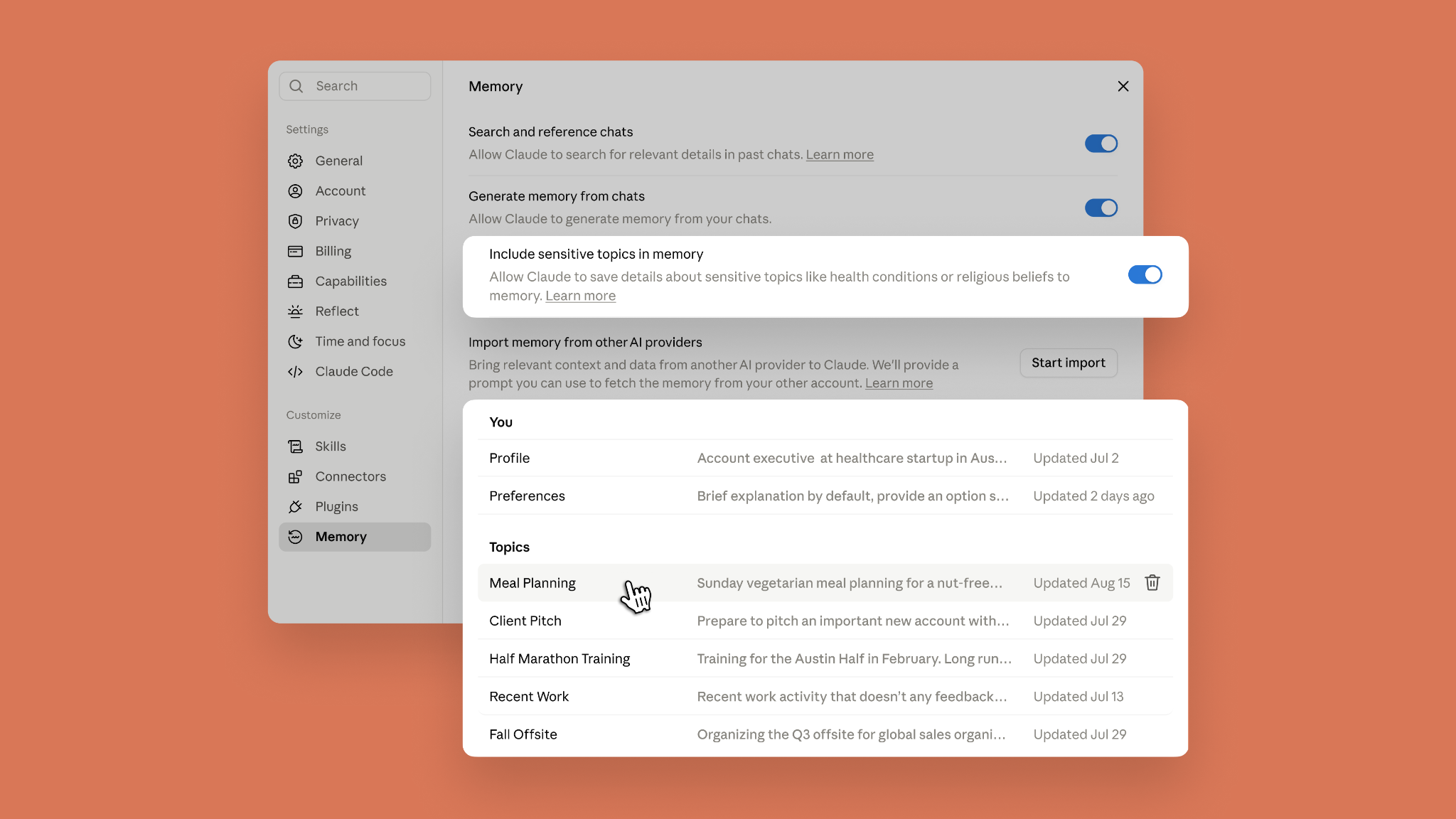
On Monday, Anthropic made memory work the same way everywhere. The memory in your regular chat is now the same memory in Cowork. Start something on your phone, finish it on desktop, and Claude carries what it knows about you across all of it.
The part worth doing today is that everything it remembers now lives in short files you can open and edit yourself. Here is exactly what I did on my own account.
Step 1. Open Settings, then Memory, then Topics. You will see a list. Profile, Preferences, then a separate file for each thing Claude has picked up from your chats.
Step 2. Read what is already in there. Most people find at least one thing that is out of date or was never quite right. Until this week you had no way to see any of it.
Step 3. Fix the wrong ones, delete the dead ones. Each file is only a few lines and you edit it directly. One correction there beats correcting the same thing in the chat every week. Fix your old company name once and every conversation from then on gets it right.
Step 4. Write your Profile properly. This is the step people skip and it is the one that pays. Two or three sentences: what you do, who you serve, what you sell. Every new chat now starts from that instead of from nothing.
Step 5. Add a Preferences line about how you want things written. Tone, length, formatting, whatever you find yourself asking for over and over. It holds now without you repeating it.
That is the whole thing. Two minutes, and you stop re-explaining yourself every morning.
What changed underneath, in case you want to know why this suddenly works: memory updates while you talk instead of summarizing after a conversation ends, so mentioning that your launch moved to September means the next chat already knows. Sensitive topics like health and beliefs stay out by default, with a toggle if you want them in.
Memory is on by default on Free, Pro and Max. On Team and Enterprise your admin controls it.
|
|
|
2. Claude got its own browser
One day later, Anthropic put a browser inside Claude.
When a task needs the web, a browser opens in the side panel of the desktop app and Claude drives it. It navigates, reads pages, clicks, and types. It can fill in a form, pull numbers out of a dashboard, or work through a portal that has no connector, while you keep doing something else.
The part that matters: this is Claude’s browser, not yours. It does not touch your tabs and it does not have your logins unless you deliberately bring them over. That is a real change from the old way, where giving Claude the web meant handing it your actual Chrome session.
Anthropic put it well: a lot of web tasks do not need your browser, they just need a browser, and now Claude has one.
Rolling out this week to Pro, Max and Team on the desktop app for Mac, Windows and Linux. Live now on Enterprise. Once it reaches you it is on by default.
Two ways to give Claude the web, and when to use each:
- Built-in browser when you want to hand off a web task and keep working. Research, collecting invoices from a vendor portal, pulling numbers from a dashboard.
- Claude in Chrome when the work is on the page in front of you, in the accounts you are already signed in to. Updating your CRM, working through your inbox, editing a doc.
Speaking of which, Claude in Chrome also went generally available the same day, on every paid plan. The bigger change there is that it no longer asks permission for every single action. A safety check runs before each step and confirms the action matches what you asked for, and if it does not, it gets blocked. You can switch that off in settings if you would rather approve everything yourself.
Both still carry some risk from instructions hidden on web pages. Anthropic says so directly. Start it on something low stakes and watch what it does before you point it at anything that matters.
Memory is on by default on Free, Pro and Max. On Team and Enterprise your admin controls it.
|
|
|
3. The Claude Connector directory keeps filling up
Claude is past 75 native connectors now. Here is what actually moved recently, and one that has been sitting there longer than most people realize.
Omneky went live in the directory on Thursday. Pull your product catalog, generate image and video ads, resize creative per placement, then launch campaigns on Meta, Google, TikTok, LinkedIn and Reddit and adjust budgets on live ones. Its underlying MCP shipped to customers back in July, so this is the directory listing catching up, but that is the part that makes it one click instead of a setup job.
HoneyBook debuted a connector last week for client pipelines, contracts, invoices and payment requests. If you bill clients, this is the one to look at.
Upfluence added nine tools to its existing connector on Monday. It could already read your campaigns. Now it can act: open a conversation with a creator, send a campaign email, reply to a thread in your inbox. Still in beta, access by request.
ElevenLabs retired its local MCP server and moved everyone to a hosted one. Nothing to install now. If you bounced off it before because the setup was annoying, that reason is gone.
Semrush provides recurring jobs are where it gets good: monthly client reports, weekly toxic link alerts, daily competitor rank checks.
That gap between “a connector exists” and “I actually use it” is most of the opportunity right now. The directory is full of things you already pay for.
|
|
|
What I would do this weekend
- If you skipped past it above, do the memory setup. It is the highest return two minutes in this email.
- Connect one new thing. Pick the one that matches work you already do by hand every week.
- Give Claude one small web task and watch the browser run it, so you know what it does before you trust it with something real.
Reply and tell me which connector you want set up first. Whichever one comes up most, I will build next week’s walkthrough around it.
Eddy
P.S. The AI Connectors launch emails will have their own unsubscribe link. Opt out of those and you stay on this list and keep getting these Friday issues. Keeping the two separate on purpose.
|
|
|
| Did You Enjoy This Email? |
|
|
|
|
|
|